
How to get more FPS in Rust with console commands and settings
Rust is one of the most demanding survival games on PC. Huge open maps, player-built bases with hundreds of pieces, dense forests and constant gunfire all land on your hardware at once. Even good computers can dip into stutters near a big base or a busy monument.
The good news is that you do not need a new graphics card to fix most of it. Rust has a built-in developer console, a handful of launch options that still work, and a settings menu with a few sliders that matter far more than the rest. Ten minutes of setup can make the game feel smoother and give you a clearer view of every fight.
This guide covers the changes that really help in the current version of the game, and points out the old tricks that no longer do anything.
First, Measure Your FPS
Before changing anything, find out where you are. Press F1 in game to open the console, type perf 2 and press Enter. A small overlay shows your frames per second and memory use in the corner of the screen. Type perf 0 to hide it again.
Check your FPS in three places: out in an open field, inside your own base and near a large monument. Rust’s frame rate swings a lot between them, and knowing which spot hurts most tells you which settings to change.
The Console Commands That Help
Console commands are official settings built into the game. They are not cheats, they work on every server and they will not get you banned. Type them into the F1 console one at a time.
| Command | What it does |
|---|---|
| fps.limit 144 | Caps your frame rate at your monitor’s refresh rate (use 144, 165, 240 or whatever yours is), so the GPU stops rendering frames you cannot see. |
| gc.buffer 2048 | Gives the game a bigger memory buffer, which cuts the stutters near big bases. |
| effects.maxgibs 0 | Stops debris spawning when walls and doors break. A big help during raids. |
| grass.displacement false | Turns off grass bending under players. A small gain in open fields. |
| gc.collect | Clears memory on the spot if the game starts hitching after a long session. |
| graphics.vm_fov_scale false | Shrinks your weapon on screen, so it blocks less of your view. |
Some settings reset when you restart the game, so it is worth saving what you can. Type writecfg after making changes to write them to your config file. For keybinds, Facepunch’s keybinds page explains the full bind syntax if you want to go further.
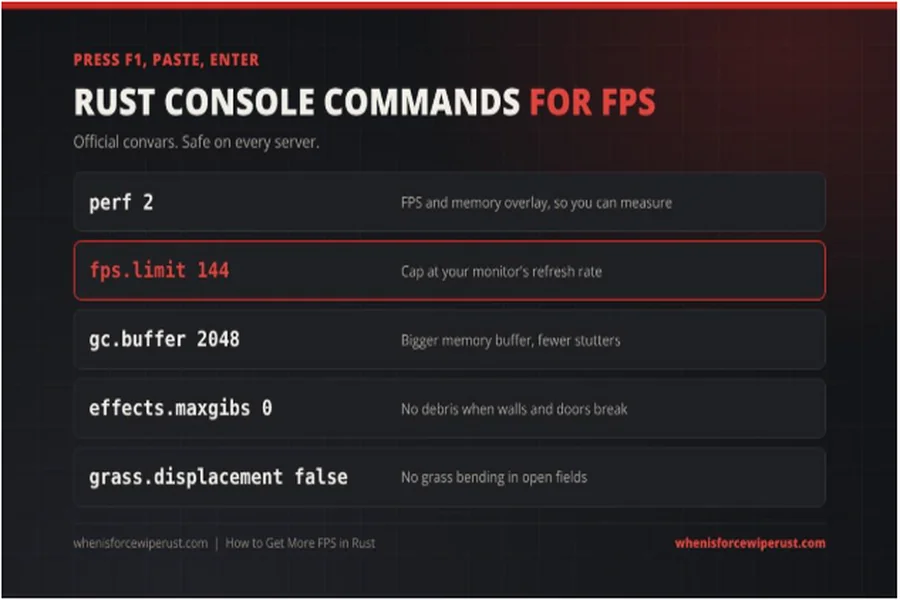
Rust console commands that raise FPS
Launch Options: Keep It Short
Launch options are settings Steam passes to the game before it starts. In Steam, right-click Rust, open Properties, and paste them into the Launch Options box, separated by spaces.
Only a few are worth using today:
- -high runs Rust at high CPU priority.
- -force-d3d11-flip-model switches to a newer way of presenting frames, which many players find smoother. If you get a black screen, remove it.
- +gc.buffer 2048 applies the memory buffer every time the game starts.
You will find much longer lists on old videos and forums, full of options like -maxMem, -cpuCount, -exThreads, -malloc=system and -heapsize. Those are outdated or do nothing in the current version of the game. More options do not mean more frames.
The Graphics Settings That Matter Most
Rust has dozens of sliders, but a few carry most of the weight:
- Draw Distance is the biggest single lever. Around 1000 is a good balance between frames and seeing players far away.
- Shader Level at 600 looks fine and runs well. Drop it to 300 on an older PC.
- Pixel Light Count at 0 removes a lot of lighting cost, especially near bases full of lamps.
- Shadow Quality at 1 with Shadow Cascades at Two keeps shadows readable without the full cost.
- Water Reflections and Water Quality at 0 help near the coast.
- Grass Shadows and Soft Particles off are free frames.
- Tree Quality and Object Quality are worth keeping in the middle, so distant players and objects do not vanish.
If you have an NVIDIA card, turn NVIDIA Reflex on in the graphics menu. It does not raise your FPS number, but it lowers input delay, which makes the game feel more responsive.
In the Experimental settings tab, switch Processor Affinity on and restart the game. It lets Rust spread its work across all your CPU cores, and on many systems it is the single best toggle in the menu.

Best Rust graphics settings for FPS
Quality of Life Settings
A few settings do not change your frame rate but make the game much more pleasant:
- Field of view (FOV) goes from 70 to 90 in Rust. Most players use 90, the maximum. You cannot set it higher, even with a console command.
- Head Bob and Hurt Punch off remove most of the camera shake when you sprint or get hit.
- Max frame rate set to your monitor’s refresh rate, with VSync off, keeps things smooth without adding input lag.
Outside the Game
The last part of performance often lives in Windows and your hardware:
- Check your refresh rate. In Windows display settings, make sure your monitor runs at its full rated refresh rate. A surprising number of people play on a 144 Hz screen set to 60 Hz.
- Set Rust to High performance in Windows graphics settings, so it always uses your dedicated graphics card.
- Close background apps. Browsers with dozens of tabs, launchers and overlays all eat into your frames.
- Enable your RAM’s rated speed. In your PC’s BIOS, turning on XMP (Intel) or EXPO (AMD) runs memory at the speed you paid for. Out of the box, many systems run it far slower.
Time Your Setup Right
The busiest night in Rust is the monthly force wipe, when every server resets and players flood back in. It is also when performance matters most, because everyone is building at once. Make your changes a day or two before the next Rust force wipe, so you are not tweaking sliders while everyone else is already off the beach.
If you want every command with copy buttons, plus keybinds like auto-run and an instant combat log, this guide to the best Rust console commands and settings lists them in one place.
The Short Version
You do not need new hardware to make Rust run better. Measure with perf 2, cap your frame rate, raise the memory buffer, cut debris and grass bending, keep launch options short, lower Draw Distance and Pixel Light Count, and turn on Processor Affinity. Then check that your monitor is actually running at its full refresh rate.
Do that once and Rust will feel smoother in the places that count: inside your base, near busy monuments and in the middle of a fight.